

Using the Engineer Console
Day-to-day guide for engineers: slash commands, internal notes, snippets, AI helpers, ticket editing and keyboard shortcuts.
A day-to-day guide for the engineers who answer chats. It covers the dashboard layout, the reply box and its slash commands, internal notes, snippets, the AI helpers, editing the ticket from the chat, keyboard shortcuts, and wrap-up.
Engineers sign in at https://<your-host>/dashboard with their Microsoft 365 account (see first-login.md for onboarding). Everything on this page runs inside that dashboard; the client's chat page never shows any of it.
The screenshots use a fictional MSP ("Northwind IT Services") and fictional clients. The demo had no PSA connected, so some shots show the amber No AT ticket badge. With your PSA (AutoTask) connected, each chat shows its ticket number instead.
1. The dashboard at a glance
The dashboard has three columns:
| Area | What it holds |
|---|---|
| Left panel | Queue search and P1–P4 filters, your Active sessions, the waiting Queue (with live wait timers), and Engineers online. The icon rail on the far left opens Archives, Surveys, Analytics and Canned Responses; your avatar at the bottom opens availability, theme, feedback and sign-out. |
| Center | The active chat: header, transcript and reply box. With no chat open, a standby screen shows Next up (the oldest waiting chat, with an Accept chat button) and today's numbers. |
| Right panel | The client context for the open chat: Contact card, Ticket, Device (if NinjaOne is enabled), Similar resolutions, recent tickets for the contact and company, and trends. During wrap-up it switches to the Wrap-up tab. On smaller screens it opens as an overlay from the header. |
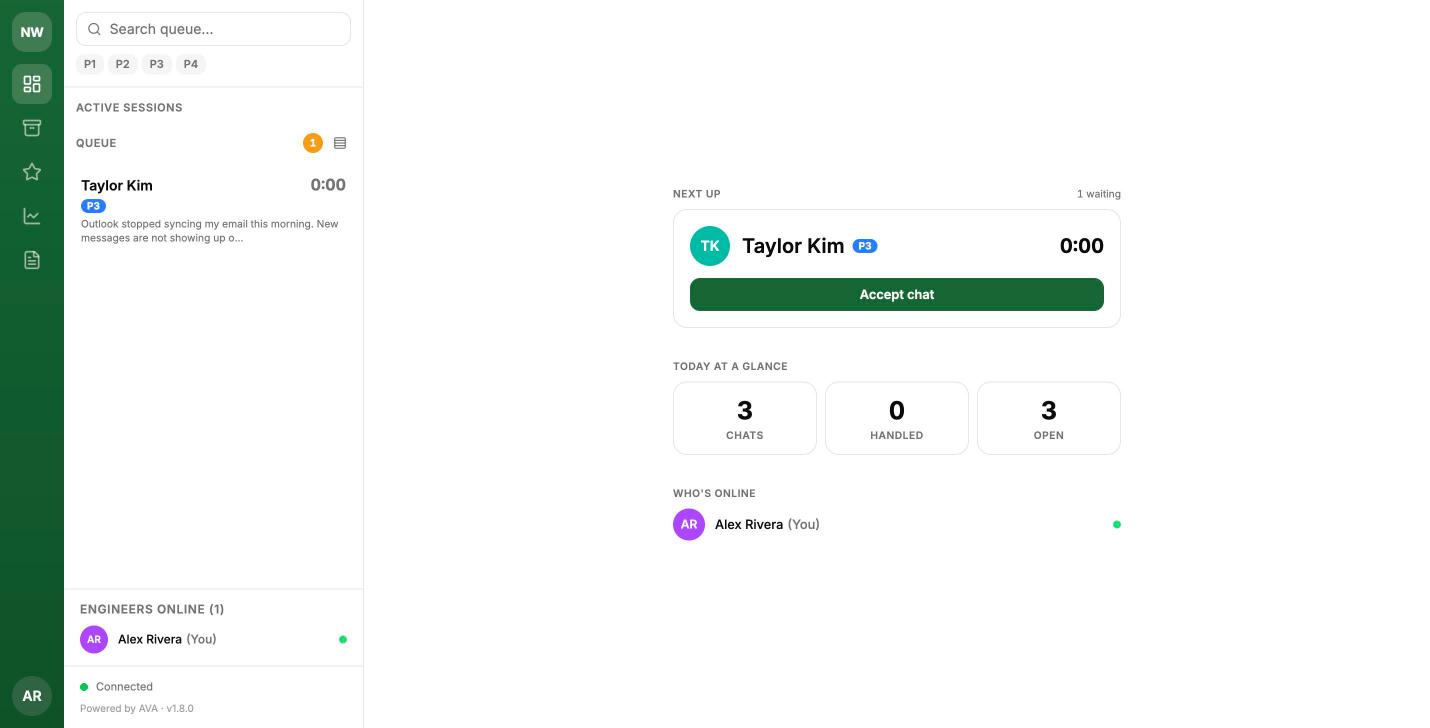
One chat waiting. Click Accept chat, or press ⌘⇧A / Ctrl+Shift+A to accept the next chat in the queue.
2. Inside an active chat
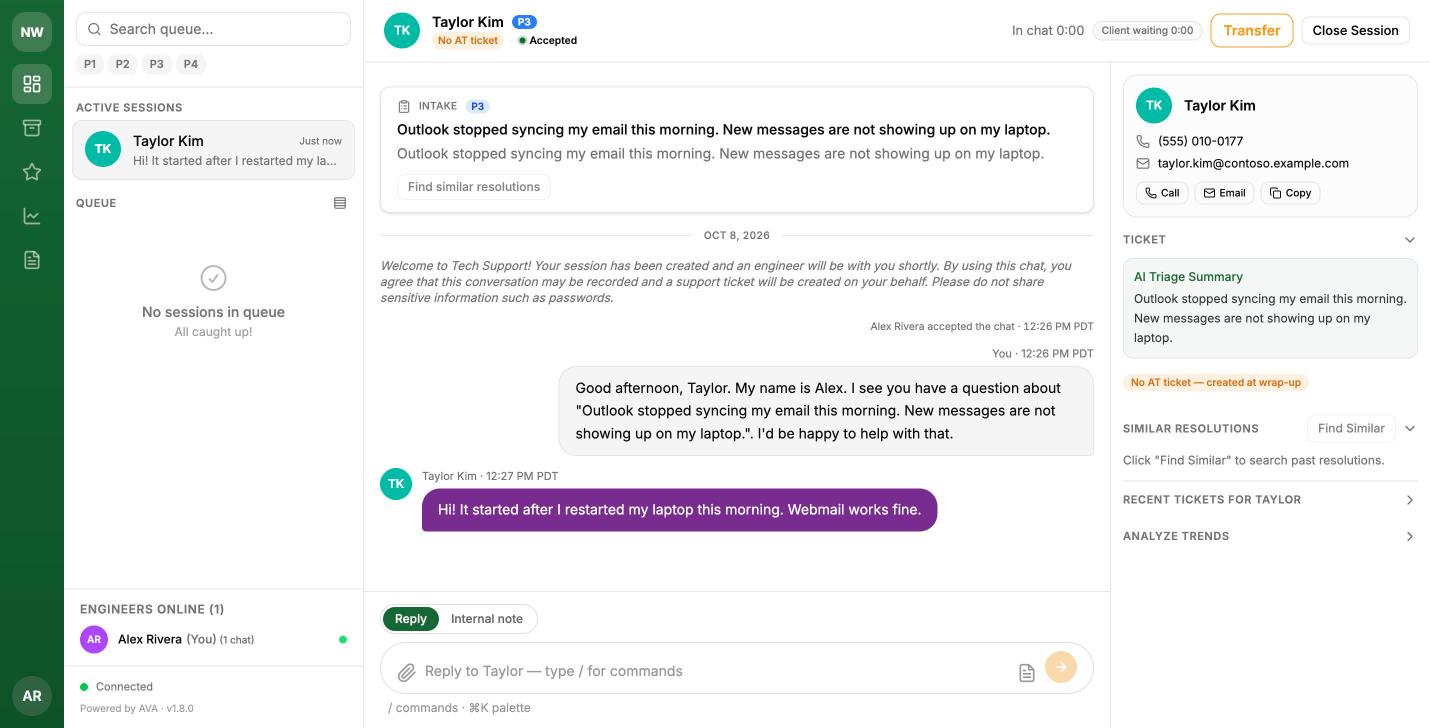
An accepted chat. This demo has no PSA connected, so the header and Ticket card show "No AT ticket".
The chat header
- Line 1: the client's name, the triage priority (P1–P4) and a presence dot (on page, tab hidden, typing, or disconnected).
- Line 2: the company, the ticket number, and the progress indicator. When AVA knows your AutoTask web address, the ticket number is a link that opens the ticket in AutoTask; otherwise it shows as plain text. A chat with no ticket shows No AT ticket (a ticket is created automatically at wrap-up).
- Progress indicator:
Queued → Accepted → Responding → Wrap-up → Closed. A chat reaches Responding once you have replied after the client's first message, and the Wrap-up step turns amber while you finish the close. On narrower screens only the current step is shown. Hover a step to see when it happened. - Right side: In chat (time since the chat was accepted) and a reply clock. Client waiting m:ss means the client wrote last and is waiting on you; it warms up at 2 minutes and turns hot at 5. Waiting on client means you wrote last. Then the Transfer and Close Session buttons.
Intake card
The first row of the transcript is the Intake card. It sums up what the client asked for before you start typing:
- the AI triage summary, the priority, and the issue category;
- the client's original description (first three lines);
- Possible duplicates: other open tickets for the same contact or company;
- Find similar resolutions: searches past tickets and shows matching fixes inline (needs AI, see section 7);
- a one-line device summary when NinjaOne device glance is enabled.
Once you are responding, the card shrinks to one line. Use Show intake to expand it again.
Activity rows
Small right-aligned rows in the transcript record what happened to the chat: who accepted it, status and priority changes, transfers, the client leaving or returning to the chat page, and the client ending the chat. Long runs collapse to the latest two with "Show N more activities". Like internal notes, activity rows are visible to engineers only.
Contact card
The top of the right panel shows the client's phone and email with Call, Email (opens your mail app with the ticket number in the subject, when there is one) and Copy.
3. Reply vs. Internal note
The reply box has two modes, switched with the Reply | Internal note toggle above it, with ⌘⇧X (Mac) / Ctrl+Shift+X (Windows/Linux), or by typing /note.
- Reply sends to the client. The placeholder reads "Reply to name — type / for commands".
- Internal note turns the box amber, shows "Internal note — only your team sees this", and the send button becomes Add note. Attachments are turned off and the client gets no typing indicator.
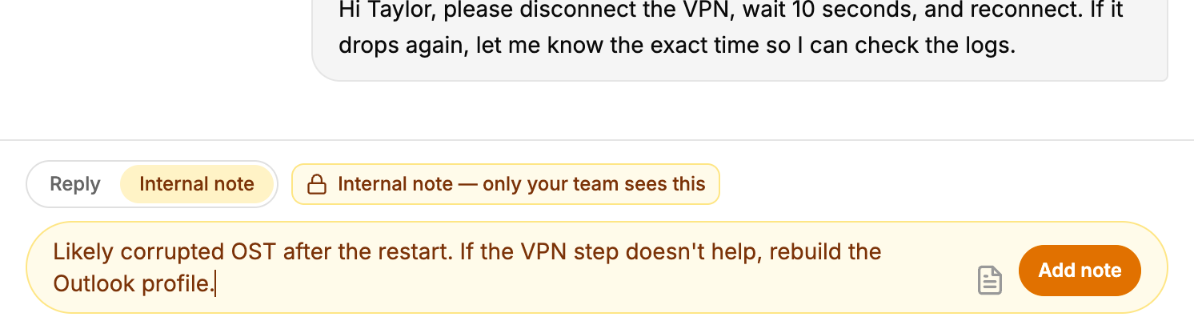
Internal note mode. Press Enter or click Add note to save it.
Reply and Internal note keep separate drafts. Switching modes swaps which draft you see; it never moves text from one to the other, so a half-written note can't be sent to the client by switching modes and pressing Enter. Each chat also remembers its own drafts and mode when you move between chats.
What happens to a note
A saved note appears in the transcript as an amber card with your name and the time.
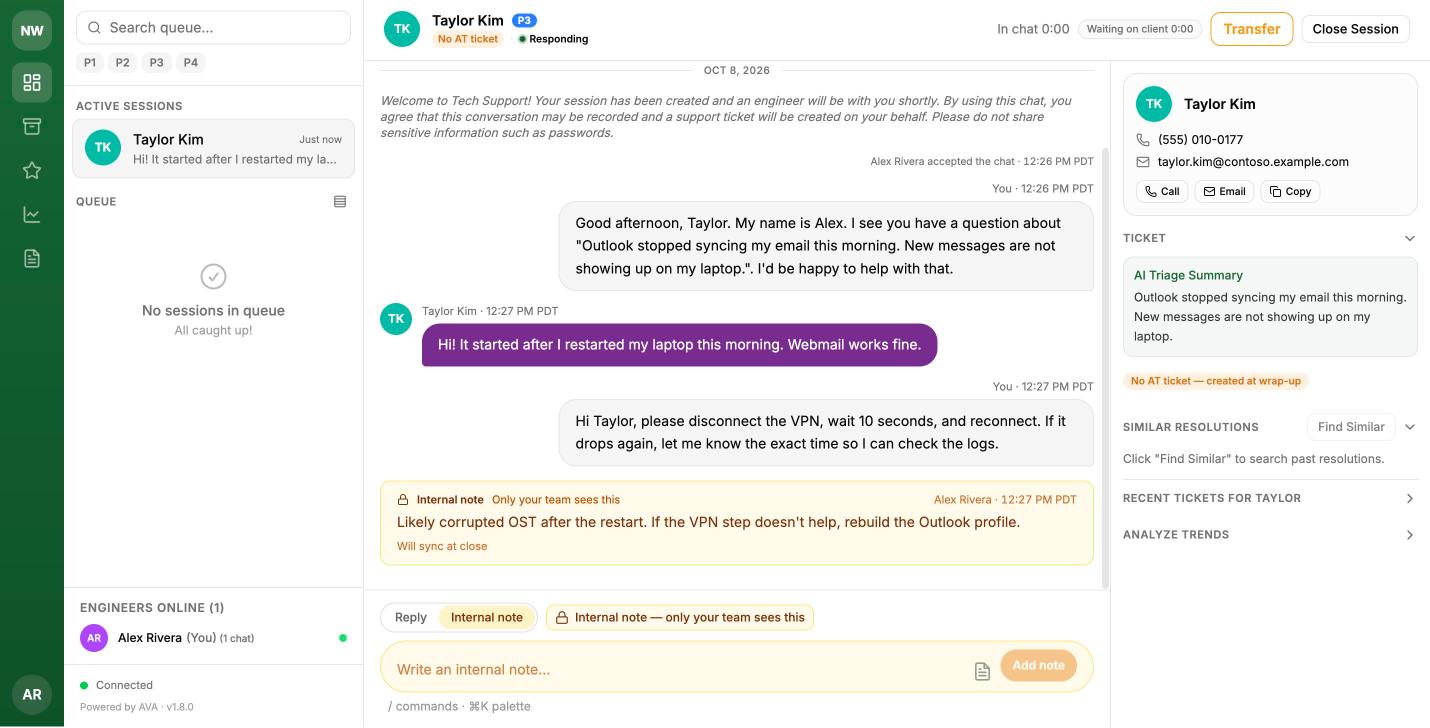
An internal note in the transcript. This demo chat has no ticket yet, so the note shows "Will sync at close".
-
Internal notes are never shown to the client. They don't appear in the client's chat, emails, the client-facing ticket note, the resolution, the time entry, or any AI text written for the client.
-
When the chat has a ticket, the note is posted to it right away as an internal AutoTask ticket note. The badge on the card shows the result:
Badge Meaning Saving… / Not saved — Retry The note is being saved in AVA, or saving failed. Click Retry. Syncing to AutoTask… Being posted now. In AutoTask Posted to the ticket. Will sync at close No ticket yet, or live posting is turned off. The note goes to AutoTask with the chat transcript at close. Not synced — Retry Posting failed. Click Retry. If the earlier attempt timed out, AVA warns that it may already have been posted, so you can check the ticket first. -
Every note is also included, labelled with its author, in the chat transcript that is attached to the ticket when the chat closes.
-
Your whole team can read a chat's notes: the engineer who owns the chat, the next owner after a transfer, the next engineer to pick up a requeued chat, and anyone reviewing it later in Archives.
Administrators: the AutoTask publish value and the live-sync switch are set with AUTOTASK_NOTE_PUBLISH_INTERNAL and AUTOTASK_SYNC_INTERNAL_NOTES. See autotask-setup.md → Step 7.
4. Slash commands
Type / at the start of the reply box to open the command menu. It filters as you type. Use ↑/↓ to move, Enter or Tab to choose, and Esc to close it (your text stays). Commands that take an argument, such as /status, fill in the command first so you can pick the value. Nothing in this menu is ever sent to the client: a draft that starts with / is treated as a command, not a message.
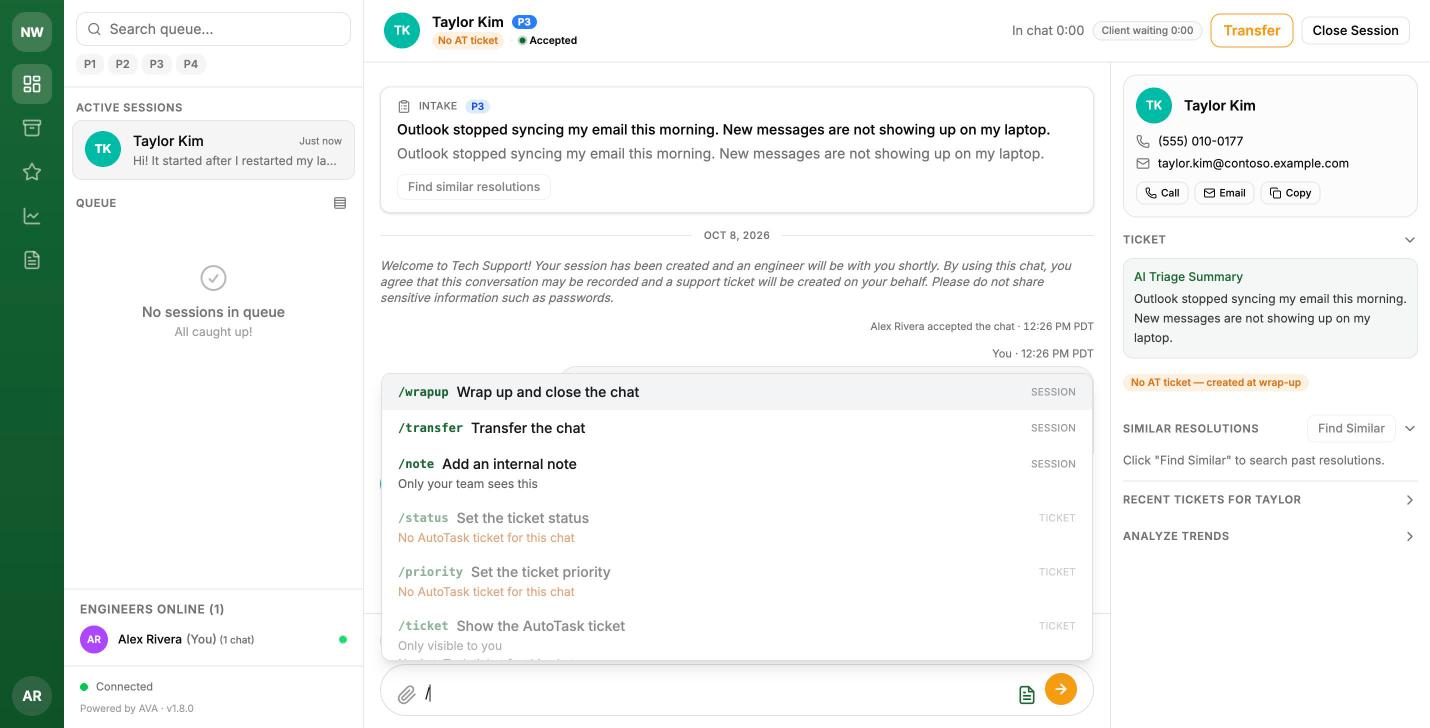
The / menu. Commands that can't run right now are greyed out with the reason. Here the demo chat has no ticket.
Built-in commands
| Command | What it does | Unavailable when |
|---|---|---|
/draft | AI suggests a reply to the client. You review it before anything is sent. | Your administrator has turned engineer AI off; the chat is closed. |
/rewrite [tone] | AI rewrites your Reply draft. Tones: professional (default), friendly, concise. Shows a before/after preview. | Same as /draft; the box is in Internal note mode; the Reply draft is empty or over 5,000 characters. |
/wrapup (also /close) | Opens wrap-up to close the chat. | The chat is closed. |
/transfer | Opens the transfer dialog to hand the chat to another engineer. | The chat is closed. |
/status <status> | Changes the ticket status after you confirm. Offers your AutoTask status list, except Complete, which is set in wrap-up. | The chat has no ticket, or is closed. |
/priority <P1–P4> | Changes the ticket priority after you confirm. Also accepts critical, high, medium, low. | The chat has no ticket or is closed; the priority mapping isn't configured. |
/note [text] | With no text, switches to Internal note mode. With text, asks you to confirm, then adds it as an internal note. | The chat is closed. |
/ticket | Shows the ticket's details in a card that only you can see. Nothing is posted. | The chat has no ticket. |
/history | Opens the right panel at the contact's and company's recent tickets. | — |
/device | Opens the right panel at the device card (NinjaOne). | — |
/summarize | AI recap of the chat so far, shown only to you. | Your administrator has turned engineer AI off. |
/help (also /?) | Opens the keyboard shortcut and command reference. | — |
Changing status or priority always asks first: Change Status to "…" in AutoTask? AutoTask workflow rules may notify the contact. Confirmed changes appear as activity rows in the transcript.
Sending text that starts with /
/To send a message that really begins with a slash, start it with //. //shrug sends /shrug. A message whose first word is a built-in command name (for example //status) still can't be sent this way. Rephrase it.
5. Snippets (canned responses)
Snippets are saved replies. Manage them on the Canned Responses page (the document icon in the left rail). Each snippet has a title, an optional category, the body text, a scope, and an optional shortcut:
- Team snippets are shared with every engineer. Personal snippets (shown as Mine) are yours only.
- A shortcut turns a snippet into its own slash command. A snippet with the shortcut
vpnruns as/vpn. Shortcuts use 1–32 lower-case letters, digits,-or_, start with a letter, and can't reuse a built-in command name. - If a personal snippet and a team snippet share a shortcut, your personal one wins for you.
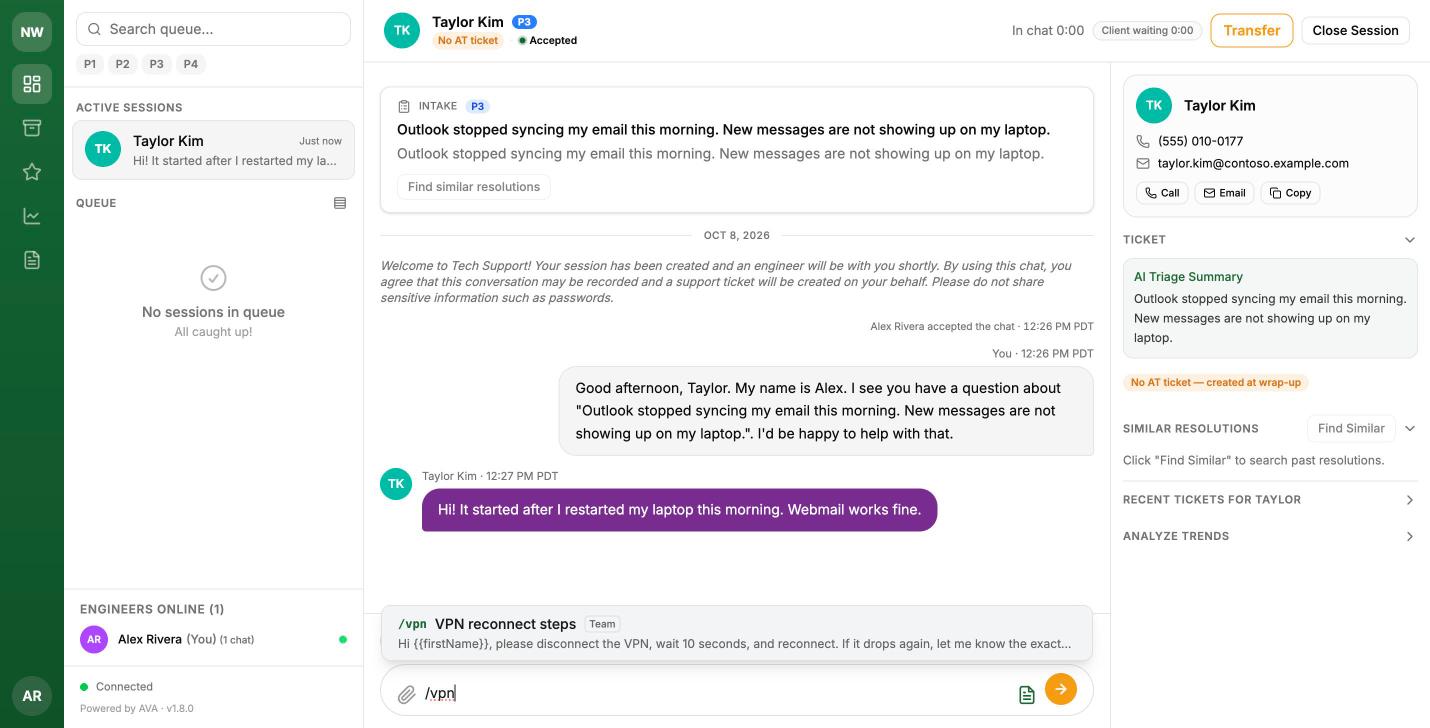
Typing /vpn finds the team snippet. Snippets also match on their title and text.
To use a snippet, type its shortcut (or search for it) and press Enter, or click the Snippets button in the reply box to browse them all. The snippet is put into your Reply draft and is not sent until you press Enter again, so you can edit it first.
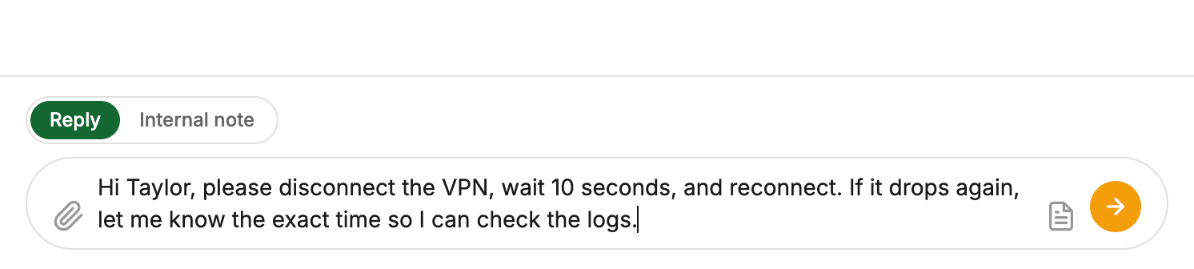
The snippet in the Reply draft, with {{firstName}} filled in as "Taylor".
Placeholders
Snippet text can include these placeholders, which are filled in for the current chat:
| Placeholder | Filled with |
|---|---|
{{firstName}} | The client's first name |
{{lastName}} | The client's last name |
{{companyName}} | The client's company |
{{ticketNumber}} | The chat's ticket number |
{{engineerFirstName}} | Your first name |
The snippet editor has buttons to insert each one and warns about misspelled placeholders. If a value isn't known for a chat (for example {{ticketNumber}} before a ticket exists), the placeholder is left in the draft and AVA won't send the message until you replace it.
Snippets always go to the Reply draft. If you use one while in Internal note mode, the box switches to Reply and shows a Switched to Reply chip.
6. The command palette (⌘K)
Press ⌘K (Mac) or Ctrl+K (Windows/Linux) anywhere in the dashboard.
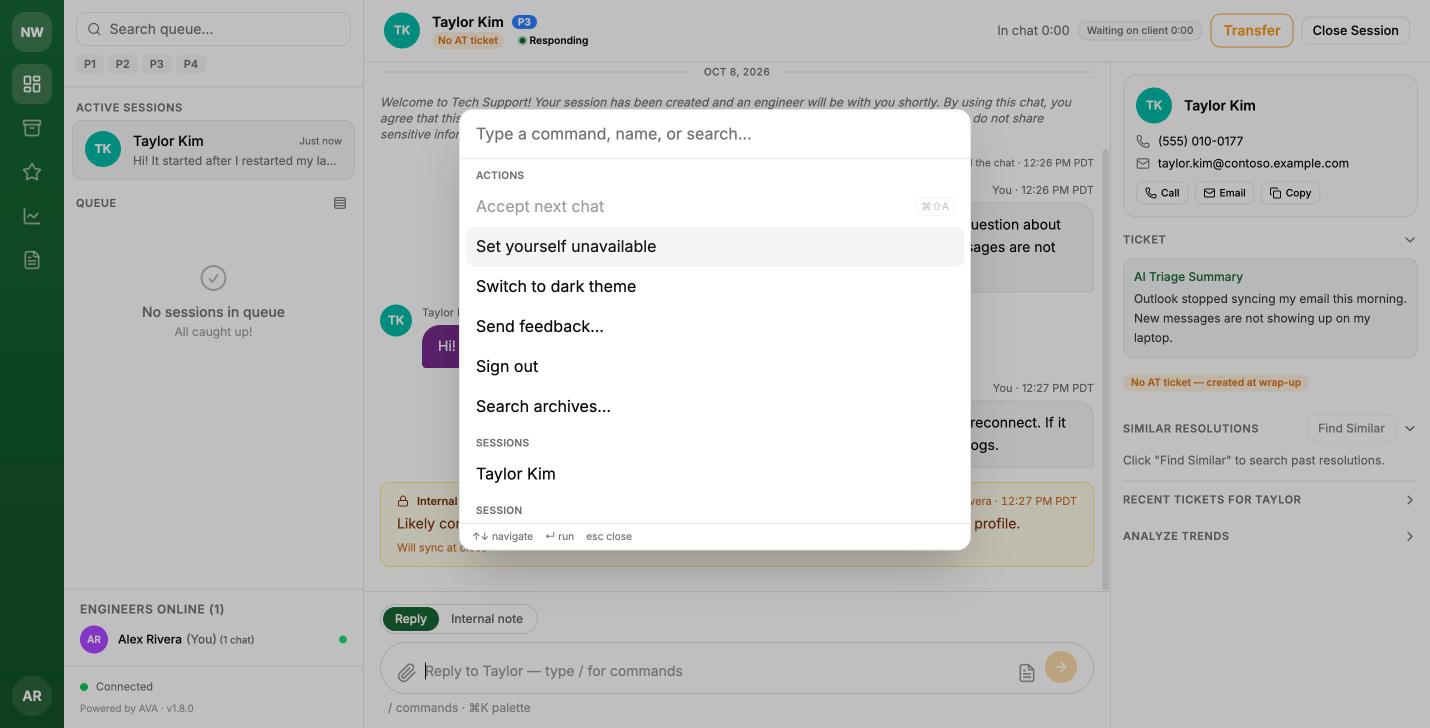
The command palette: actions, your sessions, and the commands for the open chat.
- Actions: accept the next chat, set yourself available or unavailable, switch theme, send feedback, sign out, and search archives (type any text to search closed chats for it).
- Sessions: jump to an active chat or accept a waiting one.
- Session commands and snippets: when a chat is open, the same commands and snippets as the
/menu. Commands that take an argument fill in the reply box so you pick the value there. - Navigate: go to the Dashboard, Archives, Surveys, Analytics or Canned Responses pages.
Start your search with / to list only slash commands and snippet shortcuts.
7. AI helpers
| Helper | Where | What you get |
|---|---|---|
/draft | Reply box | A suggested reply to the client based on the conversation. |
/rewrite [tone] | Reply box | Your Reply draft rewritten as professional, friendly or concise, with a before/after view. |
/summarize | Reply box | A private recap: issue, what was tried, current state, next step, open questions. Copy it or Add as internal note. |
| Find similar resolutions | Intake card, right panel | Fixes from similar past tickets. |
| Summarize / Draft all with AI | Wrap-up | Drafts for the client-facing, internal and resolution notes. |
How AI suggestions behave:
- Suggestions never send themselves.
/draftand/rewriteshow an "AI suggestion — review before sending" card above the reply box with Insert, Replace draft and Discard (for a rewrite: Replace draft, Insert after draft, Discard). Press Esc in the reply box to discard it. - Text written for the client is based only on the conversation the client can see. Your internal notes are never used for it.
- If you switch chats while a request is running, the result is kept for the chat you asked about, and a toast lets you jump back to it.
- AI commands are greyed out while one is already running for the chat.
AI runs on the provider your administrator configured (see ai-providers.md). There are usage limits per chat and per engineer per hour (AI_MAX_CALLS_PER_SESSION, AI_MAX_CALLS_PER_ENGINEER_PER_HOUR; see configuration.md). When a limit is reached you'll see a message such as "This chat has used its AI allowance" or "You've reached your hourly AI limit. Try again later." If your administrator sets either limit to 0, the AI commands are greyed out and everything else works as usual.
8. Editing the ticket from the chat
The Ticket section of the right panel shows the live AutoTask status, priority, issue type and last activity, and lets you change Status and Priority without leaving the chat:
- Pick a new value from the dropdown. Nothing is saved yet.
- A confirm strip asks: Change Status to "…" in AutoTask? AutoTask workflow rules may notify the contact. Click Confirm (or press Enter), or Cancel (Esc).
- The change is saved to AutoTask and an activity row is added. If someone changed the ticket in AutoTask in the meantime, AVA shows the current value and tells you.
/status and /priority in the reply box do the same thing.
- Complete isn't offered here. You set the final status when you close the chat in wrap-up. While wrap-up is open, Status shows "Final status is set in Wrap-up".
- Priority editing needs the P1–P4 priority mapping configured by your administrator (
AUTOTASK_PRIORITY_P1…P4, all four set and different; seeautotask-setup.md→ Step 6). Without it, Priority is read-only and shows "Priority editing isn't configured — ask your administrator". - Chats without a ticket show No AT ticket — created at wrap-up, and the ticket fields can't be edited until a ticket exists.
- Closed chats are read-only.
9. Keyboard shortcuts
Press ? (outside a text box) or run /help to see this list in the app.
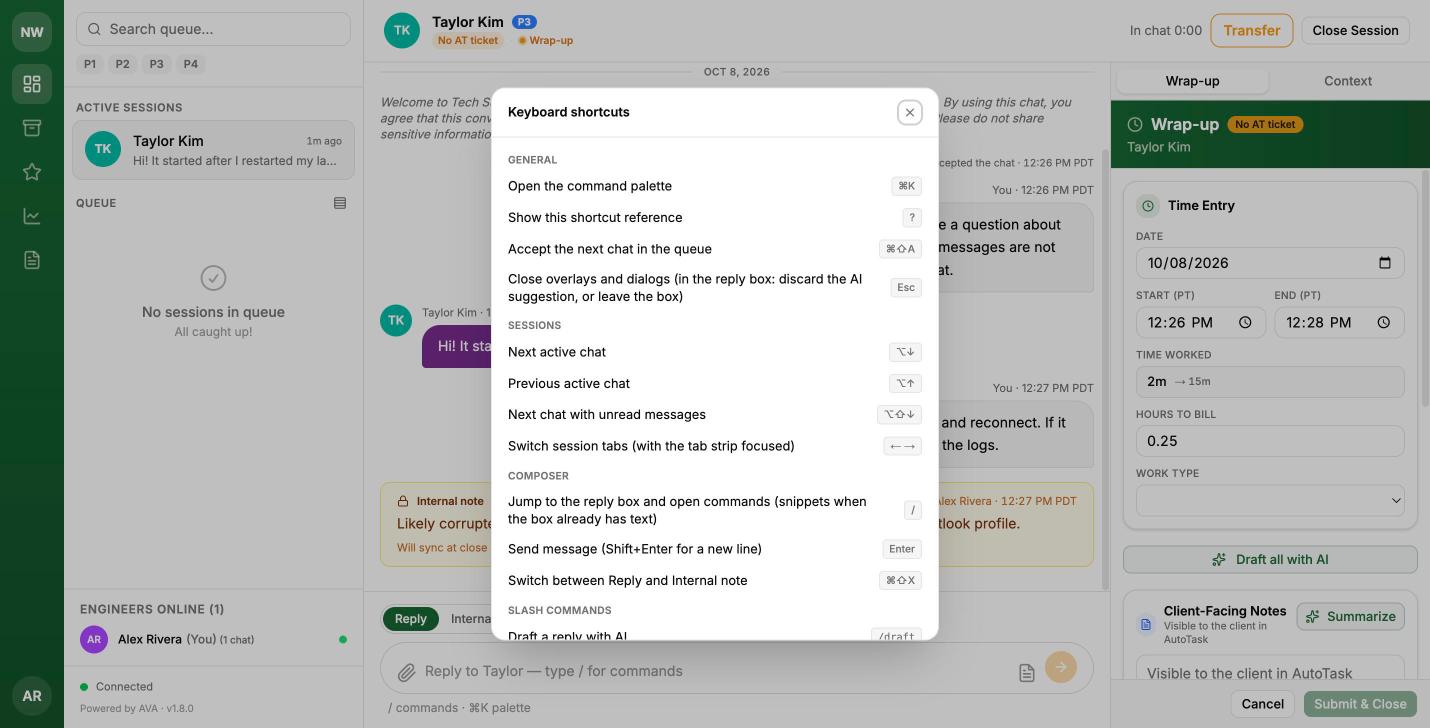
The shortcut reference. It also lists every slash command.
| Mac | Windows / Linux | Action |
|---|---|---|
| ⌘K | Ctrl+K | Open the command palette |
| ? | ? | Show the shortcut reference |
| ⌘⇧A | Ctrl+Shift+A | Accept the next chat in the queue |
| Esc | Esc | Close overlays and dialogs. In the reply box: discard the AI suggestion, or leave the box |
| ⌥↓ | Alt+↓ | Next active chat |
| ⌥↑ | Alt+↑ | Previous active chat |
| ⌥⇧↓ | Alt+Shift+↓ | Next chat with unread messages |
| ← → | ← → | Switch session tabs (with the tab strip focused) |
| / | / | Jump to the reply box and open commands (snippets when the box already has text) |
| Enter | Enter | Send (Shift+Enter for a new line) |
| ⌘⇧X | Ctrl+Shift+X | Switch between Reply and Internal note |
Notes:
- The chat-switching keys wrap around your active chats. Your drafts and the Reply/Note mode stay with each chat.
- When the reply box holds a multi-line draft, ⌥↑/⌥↓ (Alt+↑/↓) move the cursor as usual instead of switching chats.
- In Firefox on Windows or Linux, Ctrl+Shift+X may also switch the text direction. If it does, use the Reply | Internal note toggle or
/note.
10. Wrap-up
Open wrap-up with Close Session in the header or /wrapup. The right panel switches to the Wrap-up tab and the progress indicator turns amber on Wrap-up.
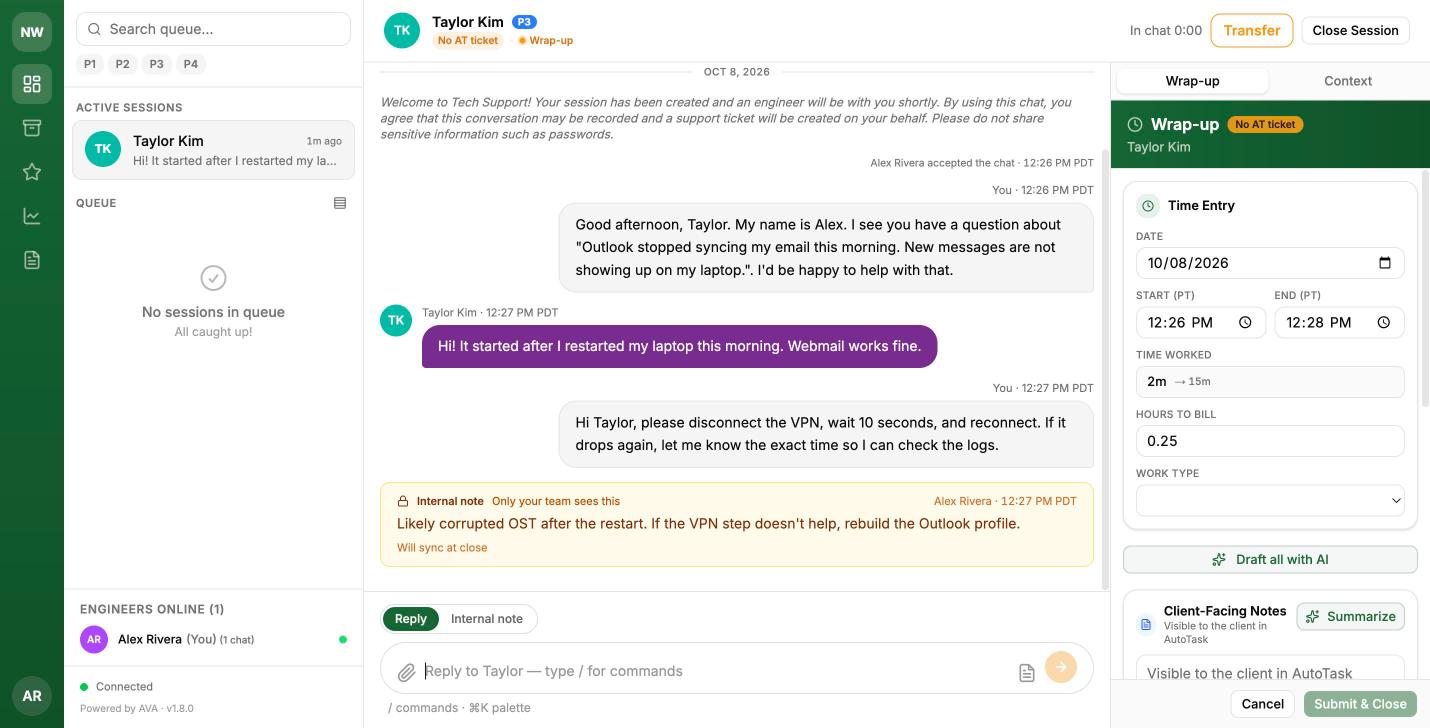
Wrap-up. This demo chat has no ticket, so the panel shows "No AT ticket"; one is created when you submit.
The panel contains:
- Time Entry: date, start and end time (pre-filled from the chat), time worked, hours to bill, and work type.
- Draft all with AI: fills the Client-Facing Notes, Internal Notes and Resolution Notes in one click. If any of them already has text, AVA asks whether to Replace all or Fill empty only. If one draft fails, the others are still filled and you're told which one failed. Each field also has its own Summarize button.
- Ticket Status: the final status, including Complete.
- Submit & Close: writes the time entry, the notes, the chat transcript (with your internal notes, labelled) and the final status to the ticket, then closes the chat. If a step fails, fix the issue and submit again; completed steps are skipped.
Client-facing notes are visible to the client in AutoTask; internal and resolution notes are not. Draft all writes the client-facing draft from the client-visible conversation only. Review every AI draft before you submit.
See also
first-login.md: engineer onboarding and the end-to-end smoke testautotask-setup.md: priority mapping, the internal note publish value, and AutoTask workflow rules to checkai-providers.md: choosing and configuring the AI providerconfiguration.md: every environment variabletroubleshooting.md: read-only priority, AI limits, notes showing Retry, and other console symptoms
Updated 15 days ago