First Login & Smoke Test
Your stack is deployed (production-deployment.md) or running locally (quickstart.md). This page onboards your first engineer and then proves the whole pipeline with a five-point end-to-end smoke test — client chat in, AutoTask ticket out.
1. Engineer onboarding
There is no admin console for creating engineer accounts and no invitation flow — Entra group membership is the entire access model:
Entra security group member  ──sign in──>  AVA engineer record (auto-created)
                                              │
                                              └─ AutoTask Resource (auto-mapped by email)
Per engineer
- Add them to the Entra security group whose object ID you set in
ENGINEERING_GROUP_ID. That's the only provisioning step. - They browse to
https://<your-host>/dashboard(orhttp://localhost:3000/dashboardlocally) and are redirected to Microsoft sign-in. - On successful sign-in, AVA checks the ID token's
groupsclaim for your group's object ID. The check is fail-closed: a non-member — or a token without the claim — is denied. (If every sign-in is denied withaccess_denied, the app registration is missing Token configuration → Add groups claim (Security groups) for the ID token; seerequirements.md§2.2.) - On the first successful sign-in AVA auto-creates the engineer record and looks up an AutoTask Resource whose email matches the engineer's O365 sign-in email, storing the mapping. From then on, that engineer's wrap-up time entries attribute to their AutoTask resource.
If the resource lookup finds no match
The engineer still signs in and can work chats normally — the mapping is logged as unmapped, and their time entries fall back to the default role without per-person attribution. To fix it, align the emails (the AutoTask resource's email must equal the O365 sign-in email) — the mapping is attempted at first login, so correct it before the engineer's first sign-in, or expect to reconcile that engineer's early time entries by hand.
Removing an engineer
Remove them from the Entra security group — the fail-closed group check denies their next sign-in. (Repo operators can also mark the engineer record disabled with npx tsx scripts/disable-engineer.ts <email> — a disabled engineer is rejected on their very next request, even with a still-valid session token.)
After signing in
Each engineer manages their own state from the profile menu at the bottom of the icon rail: availability (online/away — signals to the team whether they're taking chats), light/dark theme, and feedback. Pressing ? shows the keyboard shortcuts; ⌘K / Ctrl-K opens the command palette. Share engineer-console.md with your engineers — it is their day-to-day guide to slash commands, internal notes, snippets, the AI helpers and wrap-up.
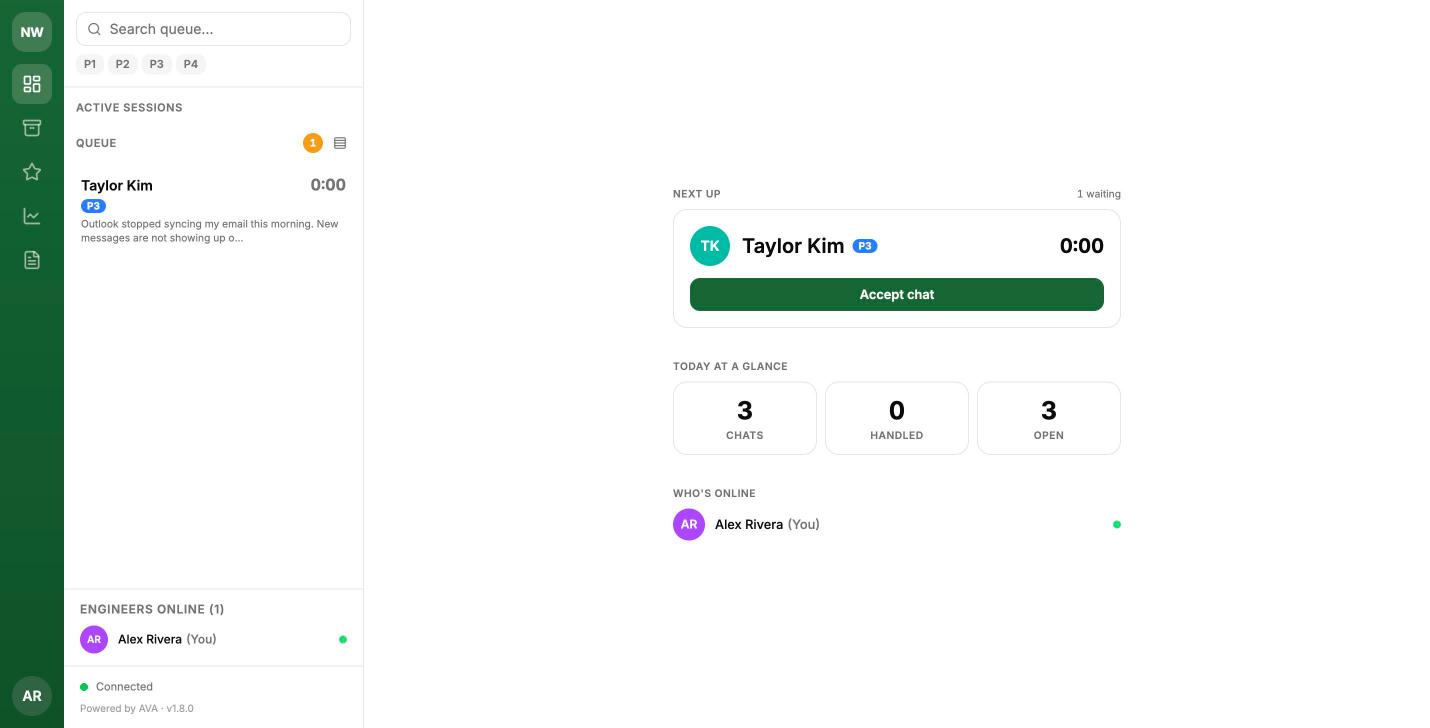
The dashboard with one chat waiting (fictional demo brand and client).
2. The five-point smoke test
This walks one chat through the entire pipeline and verifies every AutoTask write. Have one browser signed in to the dashboard as an engineer (set yourself online), and a second browser (or an incognito window) for the client side.
Outside business hours? The client page will show the after-hours state. Either wait for your configured window or temporarily set
BUSINESS_HOURS_BYPASS=trueand restart — and remove it afterwards.
Point 1 — Client starts a chat
In the client browser, open https://<your-host>/ and fill in the contact form. Choose the email deliberately:
- an address at a domain that matches an AutoTask company (e.g.
[email protected]) exercises domain → company matching; - a personal address (e.g.
[email protected]) exercises the catchall company path.
Submit. The client should land in the queue view with a position indicator.
Verify in AutoTask now: a new ticket exists under the matched company (or the catchall), created with your configured default status / priority / queue / source / type. If no ticket appeared for a personal-email test, check AUTOTASK_CATCHALL_COMPANY_ID (quickstart.md Step 5) — the engineer dashboard also shows a "No AT ticket" badge on such sessions.
Point 2 — Triage classifies it
Within a few seconds the dashboard queue shows the new session carrying an AI-assigned priority pill (P1–P4), an AutoTask issue category, and a one-line topic summary, plus a live wait timer. (If the AI call fails or times out, the chat still queues — it just files at normal priority with the raw description. Triage failure never blocks a client.)
Point 3 — Engineer accepts
Accept the chat from the queue. The client's view flips from "waiting" to the live conversation; the engineer gets the transcript pane with the triage context and (if configured) the NinjaOne device card in the rail.
Point 4 — Exchange messages
Send a message in each direction and confirm both sides render it live, with typing indicators. Optionally attach a small image from the client side to exercise the upload path (5 MB cap, type-allowlisted).
Optionally, also try the engineer console: switch the reply box to Internal note (⌘⇧X / Ctrl+Shift+X), add a note, and confirm it appears only on the dashboard — never in the client's window — and, with a ticket, shows In AutoTask on the note card.
Point 5 — Close with details
In the engineer rail, open the wrap-up panel (Close Session in the chat header, or type /wrapup):
- Review the time entry — auto-computed from the chat duration and quarter-hour rounded — and pick a work type; adjust if needed.
- Enter the client-facing notes (and any internal and resolution notes), or use Draft all with AI and review the drafts.
- Pick the final Ticket Status, then Submit & Close.
The client side receives the closure and a satisfaction survey.
Verify in AutoTask — the full round-trip. The ticket should now have:
- a client-facing note with your summary,
- an internal note (if you entered one), plus any internal notes you added during the chat,
- a distinctly titled Chat Transcript note with the full conversation,
- any attachments uploaded during the chat,
- a time entry for the billed duration, attributed to the engineer's mapped resource,
- the final status/resolution matching your wrap-up choice.
If all five points pass, your instance is wired correctly end-to-end.
3. If a point fails
| Symptom | Likely cause | Where to look |
|---|---|---|
Engineer sign-in denied (access_denied) | Not in the Entra group, or the groups claim isn't emitted on the ID token | requirements.md §2.2 |
| No ticket for a known-domain client | AutoTask company's web address doesn't match the email domain | run npx tsx scripts/test-autotask.ts <domain> to see what matches |
| No ticket for a personal-email client | AUTOTASK_CATCHALL_COMPANY_ID unset | quickstart.md Step 5; the wrap-up flow will also retry ticket creation at close |
Close fails posting notes (500) | AUTOTASK_NOTE_PUBLISH_EXTERNAL isn't a publish value your instance defines | quickstart.md Step 4 |
| Time entry has the wrong role | AUTOTASK_DEFAULT_ROLE_ID unset (warns, doesn't fail) | quickstart.md Step 4 |
| Time entry not attributed to the engineer | O365 email ≠ AutoTask resource email at first login | §1 above |
AutoTask returns 401 everywhere | Wrong credential/integration code — or the API user got locked by repeated bad attempts | check the account in AutoTask admin before debugging further |
| Every client rate-limited at once | NGINX_TRUSTED_PROXY=1 missing behind the proxy | production-deployment.md §2 |
| Priority is read-only in the console | AUTOTASK_PRIORITY_P1..P4 not all set and distinct | autotask-setup.md Step 6 |
| Ticket numbers aren't links in the dashboard | AutoTask web address not derivable from the zone URL | set AUTOTASK_WEB_URL (autotask-setup.md Step 3) |
| AI commands greyed out | AI_MAX_CALLS_PER_SESSION or AI_MAX_CALLS_PER_ENGINEER_PER_HOUR set to 0 | configuration.md |
Next: put your own identity on it — white-label.md — and keep configuration.md at hand for everything tunable.
Updated 15 days ago